After logging over 800 hours into the ever-evolving Stardust-infected wilds of Once Human since its launch, I've become something of a settings tinkerer. What started as a casual curiosity turned into a borderline obsession—I've probably spent as much time in the graphics menus as I have fighting off Deviants. But that's the beauty of this post-apocalyptic playground: dialing in the perfect performance-to-eye-candy ratio transforms the entire experience from a choppy scramble for survival into a buttery-smooth ballet of bullets and base-building.
I'm not a tech wizard with a liquid-cooled supercomputer. I'm just a regular player running a mid-range rig that's a couple of years old in 2026. The good news? Once Human has aged gracefully, with patches that streamlined optimization while adding even more visual bells and whistles. But the core truth remains: the preset graphics options are like a Swiss Army knife—serviceable, but rarely the perfect tool for the job. You have to sharpen each blade individually. Below, I'm going to walk you through my personal settings cocktail, mixed with a few unusual analogies to help you understand why each tweak matters. Think of it as a recipe that took me two years to perfect.
The Heart of the Machine: Video Settings
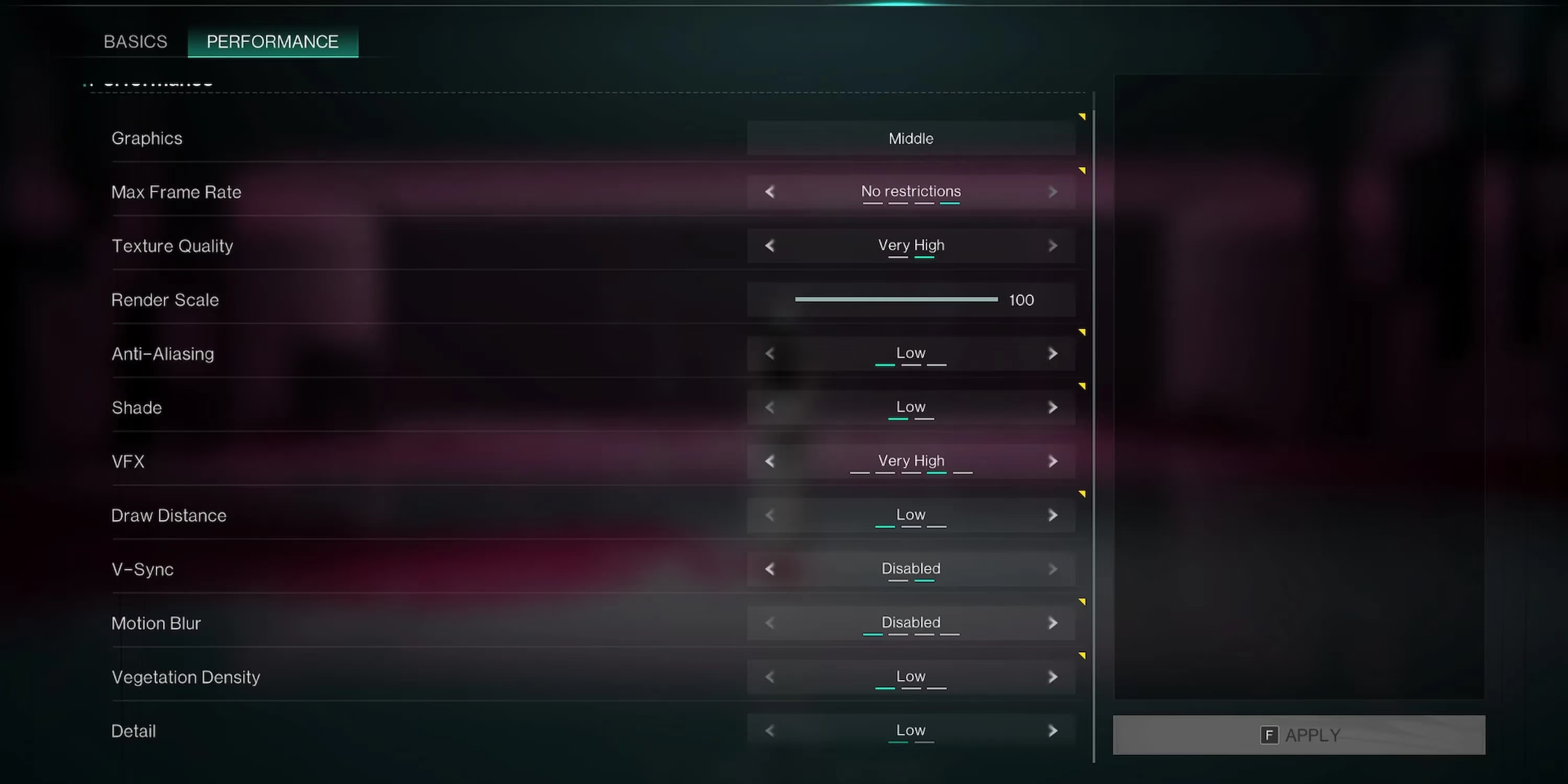
Finding the sweet spot for frames per second in Once Human is a bit like balancing a vintage analog synthesizer—every knob adjusts a different frequency, and if you twist one too far, the whole composition starts to distort. You can't just crank everything to "Ultra" and pray, unless you enjoy a slideshow every time a mushroom cloud of Stardust erupts nearby. Here's the exact setup I've been using for months, tuned for a consistent 90-120 FPS on my RTX 3060 Ti and 1080p monitor. Your mileage may vary depending on your hardware, but these values act as an excellent baseline.
| Setting | Recommended Value | Why It Matters |
|---|---|---|
| Display Mode | Fullscreen | Eliminates desktop composition overhead. Exclusive fullscreen is still king for lowest input latency. |
| Resolution | Native (e.g., 1920x1080) | Never compromise on this. Lowering resolution turns the game into a muddy watercolor. |
| Brightness | Personal preference | I keep it slightly above default to spot enemies in the Stardust-polluted shadows. |
| Max Frame Rate | No Restrictions, or cap at 120 | Uncapping reduces input lag, but a 120 cap stops unnecessary GPU strain and heat. Match your display. |
| Texture Quality | High (if VRAM > 4GB) | Textures are like the fabric of the world; setting them to Low makes everything look like unrendered clay. |
| Render Scale | 100 | Dropping this below 100 introduces a smudgy Vaseline layer. Keep it native for crispness. |
| Anti-Aliasing | Low | A delicate dance. High AA softens jaggies but adds a micro-delay to aiming. Low keeps my shots snappy. |
| Shade | Low | Barely noticeable visually, but devours frames in busy encampments. Turn it down without regret. |
| VFX | High (or Mid on low-end) | Stardust explosions and ability effects are the heart of combat. Don't starve this too much. |
| Draw Distance | Middle | Seeing a Horizon from three miles away is worthless if you can't shoot it. Mid preserves critical range. |
| V-Sync | Disabled | Unless screen tearing makes you seasick, always off. It's a latency anchor dragging your aim down. |
| Motion Blur | Disabled | The enemy of clarity. Turning this off is like cleaning a foggy window—you suddenly see everything. |
| Vegetation Density | Low to Mid | Grass looks pretty, but tall foliage hides threats and eats FPS. I treat it like trimming a hedge. |
| Detail | Low | Affects minor clutter. In a firefight, you won’t notice a missing pebble, but you will notice a stutter. |
Each of these settings talks to one another, forming a fragile ecosystem. If I had to pick one unconventional metaphor here, it's this: optimizing Once Human's graphics is like being a master coffee roaster. The beans are your raw GPU power, the roast profile is your combination of settings, and the resulting cup is the gameplay experience. Over-roast by maxing out VFX and Shadows, and you get a bitter, sluggish brew. Under-roast by turning everything to Low, and you're left with a thin, watery spectacle that lacks depth. The profile above gives me a rich, balanced cup every time.
Polishing the Lens: Camera and Mouse Tweaks
FPS isn't just about the GPU sweating over pixels. The way the camera behaves is the unsung hero—or villain—of how snappy the game feels. Another analogy that I've been carrying around: your camera settings are the strings of a harp. Each one vibrates at a certain frequency, and if the tension is off, the whole melody of your aim goes flat. In the Mouse/Display menu, under Camera Control, I set the Screen Shake Density to 0. Trust me on this. Explosions and creature roars are dramatic enough; your crosshair doesn't need to join the mosh pit. It steady your aim like a gyroscope on a ship.
The Camera Distance I keep between 12 and 15. This might seem like a personal preference for field-of-view, but it directly impacts performance. A higher FOV forces the engine to render more of the world at once—more meshes, more shadows, more everything. Sticking to this mid-range gives you ample peripheral awareness without the performance tax. I've seen players push this to 20 and then wonder why their frames tank in Stardust valleys. It's like trying to read a book with a magnifying glass held a foot away; you just don't need that much context.
Two Years of Patches: What Changed in 2026?
Since the early days, the developers have done a commendable job smoothing out some jagged edges. Ray tracing options, which were experimental back in 2024, now have a lightweight mode that runs decently on mid-tier cards, but I still leave it off for competitive PvP. The addition of AMD FSR 3.1 and updated DLSS has been a godsend. If you're struggling, enabling FSR on "Quality" mode can claw back 15-20 FPS without turning the image into soup. However, I prefer native resolution tweaks first, because upscalers can add a faint ghosting in movement—something my eyes have never fully un-seen.
The setting that surprised me most over time was Texture Quality. You'd think it's a VRAM hog, but in a world dense with Stardust decay, low textures make the entire scene feel like a cheap mobile game. Once Human's art direction deserves better. With 8GB VRAM now being the entry-level standard in 2026, most players can safely leave it on High and let the corroded billboards and weather-beaten bases truly shine.
Final Thoughts from a Fellow Survivor
If you take one thing away from my obsessive ramblings, let it be this: don't blindly copy someone else's settings, not even mine. Use them as a starting point, then play a few rounds while watching the in-game FPS counter (which you can enable in the settings too). Every system is a unique snowflake of silicon and software. The real magic of Once Human is that it lets you customize the experience as deeply as you customize your base. The world is already unpredictable; having a stable, responsive framerate is your machete through the Stardust jungle.
Tweak, test, and tweak some more. Before you know it, you'll be headshotting a Deviant while maintaining a rock-solid 100 FPS, and you'll feel like the symphony of settings is finally playing your song. See you in the wasteland—where the only thing sharper than the teeth of the monsters should be your graphics optimization.